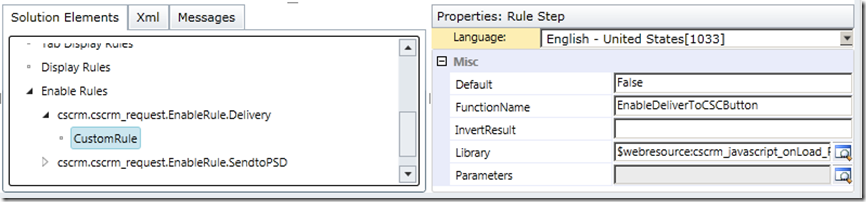
I was working in a requirement where ribbon customization was required based on user role. Many ribbon buttons were hidden / visible based on different roles assigned to user. There was also custom button on ribbon bind with custom JavaScript function.
Due to more buttons bind with Enable Rules to set their visibility result in slow page load and increase user wait for Ribbon Buttons.
Previously, I was getting user roles ids from XRM method and then checking the name of roles by getting role name through Web API retrieve request and passing guid of role as parameter. This means if there are 7 roles assigned to user then system will make 7 API Calls.
Also on custom button trigger, System was again loading the webresource and as API Calls were made outside any function therefore system also made API Calls before triggering custom ribbon button function. There were separate web resource for Enable Rules of Ribbon Buttons. There were methods which were used in Entity Main web resource and in Enble Rules web resource.
What I did was that I create another web-resource and write a class of Dynamics CRM Roles. This class contain method and an array to load all roles from Dynamics CRM 365. So I loaded the array with role name and role guid using the Web API retrieve request for roles. This technique loaded the array with all roles and made the API Call only once.
Now in my logic and other areas where I was checking with role name whether user is assigned that or not, I was using the roles array to match.
So this result in making Web API Call only once.
Here is my code logic.
Updating shortly ....
㉺㉼㉴㉳㉽㉾㈕㈔㈆㈅㈄㈄㈃㈁㈀㉤
Ali Hamza Wadood Microsoft Dynamics CRM Developer | Software Engineer - Microsoft Technologies(Asp.Net, Asp.Net MVC) LinkedIn
Due to more buttons bind with Enable Rules to set their visibility result in slow page load and increase user wait for Ribbon Buttons.
Previously, I was getting user roles ids from XRM method and then checking the name of roles by getting role name through Web API retrieve request and passing guid of role as parameter. This means if there are 7 roles assigned to user then system will make 7 API Calls.
Also on custom button trigger, System was again loading the webresource and as API Calls were made outside any function therefore system also made API Calls before triggering custom ribbon button function. There were separate web resource for Enable Rules of Ribbon Buttons. There were methods which were used in Entity Main web resource and in Enble Rules web resource.
What I did was that I create another web-resource and write a class of Dynamics CRM Roles. This class contain method and an array to load all roles from Dynamics CRM 365. So I loaded the array with role name and role guid using the Web API retrieve request for roles. This technique loaded the array with all roles and made the API Call only once.
Now in my logic and other areas where I was checking with role name whether user is assigned that or not, I was using the roles array to match.
So this result in making Web API Call only once.
Here is my code logic.
Updating shortly ....
㉺㉼㉴㉳㉽㉾㈕㈔㈆㈅㈄㈄㈃㈁㈀㉤
Ali Hamza Wadood Microsoft Dynamics CRM Developer | Software Engineer - Microsoft Technologies(Asp.Net, Asp.Net MVC) LinkedIn